Snip & Sketch Not Working on Windows 10
Snip & Sketch is the app that replaces the Snipping Tool found in earlier versions of Windows. It is a useful utility, which allows users to take flexible and easy-to-edit screenshots of their desktop or specific windows and areas. However, it is not free of bugs – sometimes users complain that snip & sketch is not working on Windows 10. If you are encountering this issue as well, then you should take a few minutes to troubleshoot the app and try to fix the problem. Below, we will go over some of the popular fixes to use when Snip & Sketch is not working.
Table of Contents
Did Snip & Sketch Freeze? Restart it
If you think the app has frozen and become unusable, then you will need to restart it. Of course, some freezes cannot be fixed by simply clicking the X icon. In these cases, you will need to use the Windows Task Manager. Press the combination Control + Shift + Escape to load the Windows Task Manager, and then select the Processes tab. Right-click Snip & Sketch -> End Task. Now, open the app again.
Reset Snip & Sketch
You can reset default Windows applications to try and fix corrupted settings or files. To do this, go to Start Menu -> Apps & Features. Select Snip & Sketch -> Advanced Options. Press the Reset button.
Reinstall Snip & Sketch
Another fix is reinstalling the app completely. You can go to Start Menu -> Apps & Features to uninstall Snip & Sketch. After this, open the Microsoft Store and install Snip & Sketch again.
Disable Focus Assist
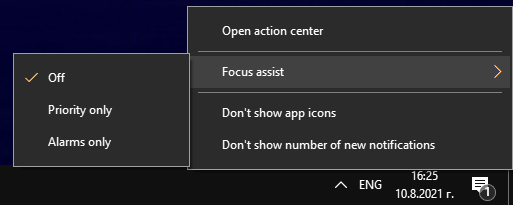
Some users report that turning off the Windows Focus Assist feature fixed Snip & Sketch for them. Right-click the Action Center icon in the bottom-right corner and select Focus Assist -> Off.
Run an SFC Scan
The last thing to try out is the Windows System File Checker (SFC.) This utility examines all Windows components and files for any issues or corruptions, and then attempts to fix them. Keep in mind that this operation may take some time to complete, depending on your computer's hardware. This is the recommended last-ditch effort to fix issues with any Windows components and apps.
- Open Start Menu -> Command Prompt. Make sure to right-click it and select the Run as Administrator option.
- Enter the command sfc /scannow.
Wait for the task to complete, and then restart your PC.