'Aw, Snap' Chrome Error
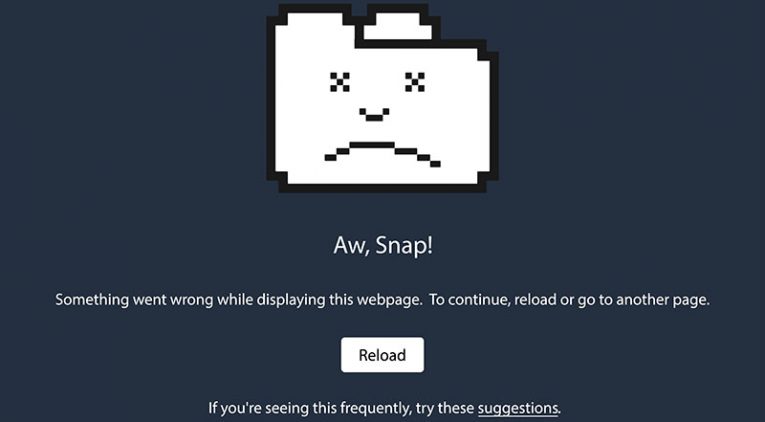
The 'Aw, Snap' Chrome Error is one of the most common issues that Google Chrome users encounter. The worst part about this problem is that it could be caused by all sorts of factors – a bug with your browser, losing your Internet connection, or because the website you are trying to access is offline. While there is nothing to do if the website is offline, there are troubleshooting steps to try out in case you suspect the issue is caused by your Internet Service Provider (ISP) browser or device. So, what do you do if you encounter the 'Aw, Snap' Chrome Error?
Table of Contents
Refresh the Page
Sometimes, the issue might occur because a script on the page you are trying to view failed to load. In particular cases, this may result in the entire website failing to render. Thankfully, there is an easy way to retry loading it – simply use the Refresh button. Alternatively, you can use the button F5 or the button combination Control + R to refresh the page.
Check Your Internet
Are you sure that the website is the cause of the problem? If you cannot connect to any other sites and other Internet-connected services are not working, then there might be an issue with your Internet connection. We recommend restarting your router and PC to try and restore the connection. Alternatively, you can try a more specific troubleshooting step like fixing the 'DNS Server Unavailable' Error.
Clear the Chrome Cache
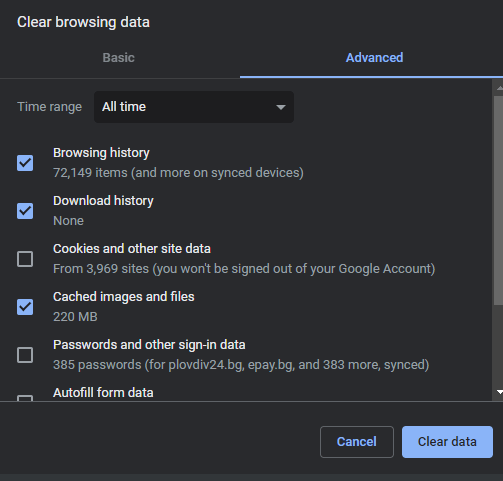
A corrupted cache might be causing issues with specific websites. We advise you to clear the Google Chrome cache by pressing Control + Shift + Delete and opting to wipe out Cached images and files.
Disable Extensions
Did you remember installing a new extension shortly before the issue occurred? Remember that Chrome add-ons are developed by 3rd-parties, and it is very possible to encounter unexpected bugs and conflicts if you use too many add-ons simultaneously. We advise you to disable all add-ons and see if this fixes the problem. If the issue seems to be resolved, start activating the extensions one by one until you identify the cause of the problem.
Update Google Chrome
Google Chrome's updates are meant to enhance features, security, and stability. Running an outdated version may result in various problems, especially if you are missing a critical update. Head to the address chrome://settings/help to see if your Google Chrome is lacking any updates.
Reset Google Chrome
The last thing to try if the issue does not go away is to reset Google Chrome. This involves deleting all cached files, removing accounts, files, registry entries, and any other content that Google Chrome has saved. You can learn how to do this through How to Reset Google Chrome Without Losing Passwords?