How to Delete Time Machine Backups
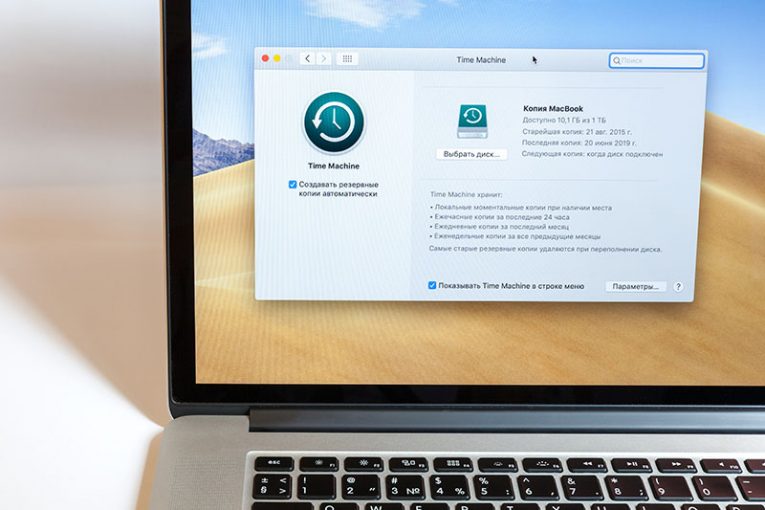
The Time Machine is the integrated backup feature of Macs. It is great for recovering files or folders that were lost on accident, or even restoring your system to an earlier date – just like the Windows System Restore feature. It can be an absolute lifesaver in case something unexpected happens to your Mac. However, some users complain that Time Machine backups take too much hard disk space – this can be a serious problem if you do not have enough storage space. While removing Time Machine backups should be one of the last things to consider, some users opt to delete this files since they can easily free up tens of gigabytes of space.
You can delete past Time Machine backups through the app itself. If you are storing them on an external drive, then make sure that it is connected to your device first. After this:
- Go to Finder and open Time Machine.
- Open the Home folder for your user, and then use the arrows to scroll through backups
- Find the backups you want to delete, then right-click them and select Delete all backups of…
- Enter your username and password when prompted to do so.
Alternatively, you can do the same through the Terminal. Go to Applications -> Utilities -> Terminal, and use the following commands:
- Tmutil list backup – it will show a full list of available Time Machine backups. Note the names and paths of the ones you want to delete.
- sudo tmutil delete <BACKUP PATH> - typically, the path looks something like this /Volumes/<NAME OF TIME MACHINE VOLUME/Backups.backupdb/<NAME OF DEVICE>/<DATE OF BACKUP>/
As we already mentioned, deleting Time Machine backups is not recommended because this feature can save you a lot of headaches if something goes the wrong way. For more help with Time Machine, check out guide on Troubleshooting the 'Time Machine backup failed' Issue.