7 Common Windows Problems аnd How тo Fix Them
Windows 10 has definitely proven to be one of the best products Microsoft have ever released. It has a tons of features compared to its predecessors and a wide range of improvements in terms of accessibility, performance, and functionality. However, Windows problems can never be eliminated fully. There are always some challenges that Windows users will have to face every now and then. While some of the Windows problems require complicated, multi-step troubleshooting processes, there are also more common issues. Below, we go over 7 common Windows problems and how to fix them.
Table of Contents
1. Not Enough Space to Install a Windows Update
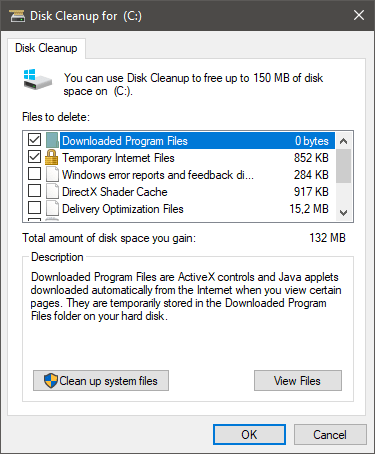
Windows Updates may sometimes take a lot of space, especially if you are installing a major one or if you have not updated in a while. One option to solve this issue is to start deleting files manually, but there is also an automated tool to help you out with this.
- Go to Start Menu and search for Disk Cleanup.
- Open the utility and then select the drive you want to clean up – this should be your system drive or the C: drive.
- After a quick scan, Windows will recommend the files to delete. Select the ones you wish to remove under the Files to Delete section.
- Press OK to finish the process.
If this is not enough, you may need to delete some files manually or uninstall unnecessary apps – how to uninstall apps on Windows.
2. Windows Starts Slowly
Slow boot is another issue that Windows 10 users often complain about. The recommended course of action here is to apply all pending updates, as well as to check for malware. You can either use the embedded Microsoft Windows features or run a 3rd-party antivirus tool. Make sure to refer to our guide on How to Make Windows Start Faster for additional tips.
3. Windows Uses the Wrong App to Open Files
Managing unknown file formats or more obscure formats may sometimes lead to Windows using the wrong type of software. You can fix this in two ways. Option one is to right-click the file and use the Open With context menu to select the app you want to use.
Alternatively, you can go to Start Menu -> Settings -> Default Apps. From there, you can pick the Choose default apps by file type to configure the setting manually
4. Windows 10 does not play DVDs
DVDs are still in use today, even though they have been replaced by more efficient formats. If you are trying to play a DVD, but Windows 10 refuses to do, then you might need an alternative player. One example is VLC Media Player, but there are tons of other media players that can play all sorts of media formats on Windows.
5. Windows 10 Shows too Many Notifications
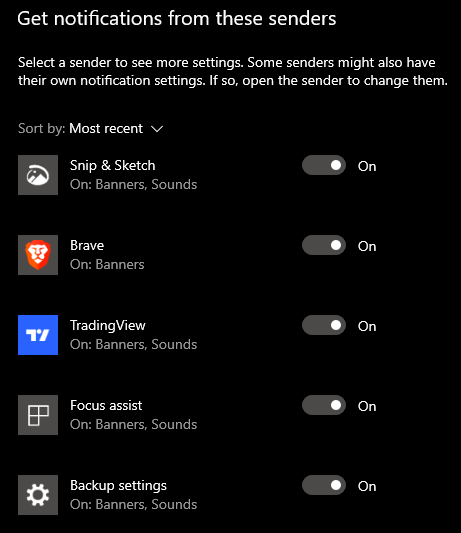
Depending on how you use Windows, you may accidentally subscribe to too many notifications. If these are bothering you, then you can switch them off.
- Go to Start Menu -> Settings -> Notifications & Actions.
- Select which notifications you want to get notifications from.
- You can use the same menu to block notifications entirely.
6. How to Control Windows Privacy Settings
Users are becoming more and more concerned with their online privacy. If you also worry about this, then you can use the Windows Control Panel to manage these settings. Head to Start Menu -> Privacy to control the settings for your camera, location, microphone, or general privacy configuration.
7. System Restore Missing on Windows 10
System Restore has been a very helpful feature ever since it was introduced. It can help you restore from crashes, malware infections, or system errors and failure. However, it may sometimes be turned off by default on Windows 10. To restore it, do the following:
- Go to Start Menu -> Create a Restore PointChoose the System Protection tab and opt to use the C: drive.
- After selecting the C: drive, select Configure -> Turn on System Protection.
- Finally, select how much space System Restore should use to save data – typically, 5-10% is recommended.