Resetting a HP Laptop to Factory Settings
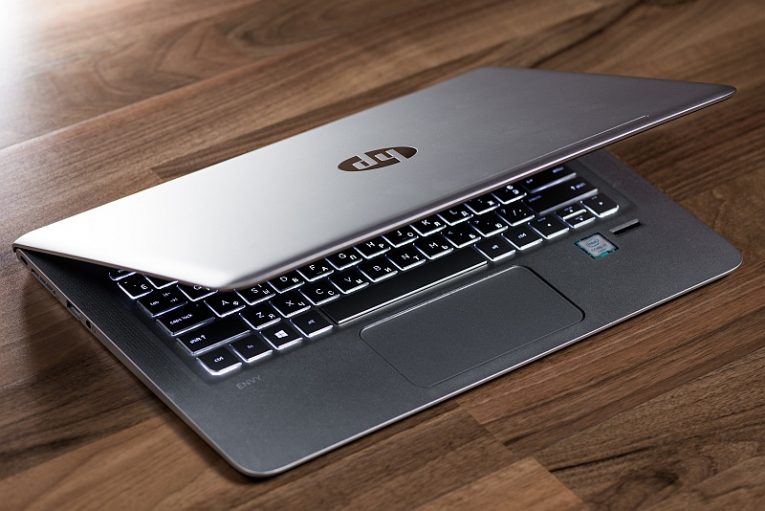
If you are displeased with the way your HP laptop performs or you feel like you have been tweaking some settings a bit much without knowing particularly well how they might impact your system, or you simply installed a few applications too many and feel like starting fresh, you can always reset your HP laptop to its factory settings.
Bear in mind that you should make a backup of all your important files, documents and photos before you proceed with a factory settings reset. You can use both offline backup on a flash drive or an external hard drive and your favorite cloud service.
Once you have backed up all files you need, follow the steps below to reset your HP laptop to factory settings.
-
Open the start menu and type in "reset this pc". Click the icon of the app that comes up in the start menu. An alternative to this is to navigate to Settings > Update and Security and then click the Recovery item in the menu on the left.
-
Once you are in the Recovery view of the Settings menu, click the “Get started” button near the top, under the “Reset this PC” heading.
-
In the next steps you will be given the options “Keep my files” and “Remove everything”. If you have backed up all your important files, you can go with the “Remove everything option”. Bear in mind that both options will uninstall all applications from your system and reset Windows settings.
-
Follow the rest of the onscreen instructions. Your system will probably need to go through at least one reboot. Following it, you will find your HP laptop returned to the state it would be if it had just had a fresh Windows install on it.
You may want to manually look for updates to your OS after you perform the factory reset, so your Windows catches up on any updates that were also rolled back.
Following this, you will be able to enjoy a smoother experience with your freshly reset laptop.