How to Pick a System Default Browser on a Mac Computer
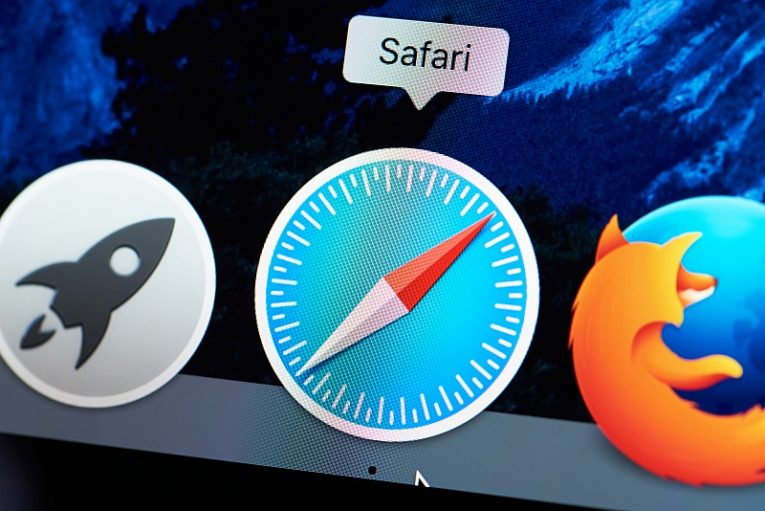
Even if you always launch your favorite browser from your dock icon, you may never realize this might not be your computer's default browser.
If you have multiple browsers installed, for example Chrome and Firefox, in addition to the installation of Safari that comes with your MacOS, only one of them can function as your system's default browser at a time.
This article will show you a quick and easy way to either change your current system default browser if you don't want to uninstall it entirely and still use it for testing or you simply want to try a new default browser for a while.
Your system's default browser is the one that launches when you click a website link in a document, PDF file or an email. This can be any of the working browsers you have installed on your system at any time.
To set your Mac's default browser, follow these simple steps:
-
Table of Contents
Click the Apple icon menu.
-
Click on System Preferences.
-
Click the General tab.
-
Find and choose your preferred system default browser in the “Default web browser” menu.
Once you are done here, you can close the System Preferences window. From this point on, every time you click a link outside of a browser, your Mac will launch your newly chosen browser.
You can perform a similar selection for your system default email application. A lot of people check their emails in a browser window, but some prefer using a dedicated email application. If you want to change your default email app, open Mail on your Mac, then click on Mail and Preferences, selecting the General tab just like in the steps above.
Here you can use the "Default email reader" menu to select a different system default email app, if you have an alternative application installed.