How to Use the Mac Migration Assistant
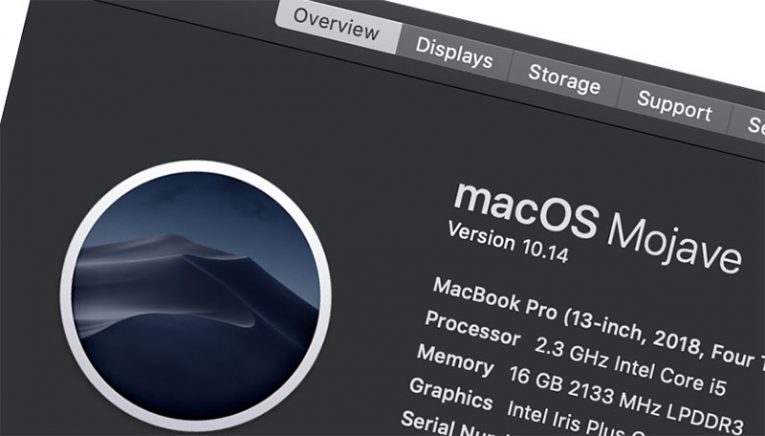
Switching to a new computer can often be a troublesome and time-consuming process since you need to transfer a large amount of data, settings, apps, configuration files, and more. However, Mac users can make use of an integrated tool called the 'Migration Assistant' – it is meant to make transferring to a new device a much simpler and quick process. If you have just upgraded your Mac device and want it to have the same settings and files as your old one, then you should consider learning how to use the Mac Migration Assistant.
But what are the exact capabilities of the Migration Assistant? It is important to specify that it is not a simple variant of iCloud, which allow you to transfer files. Instead, the Migration Assistant can help you set up an exact copy of your old device and install it on your new laptop or computer – this includes apps, files, settings, accounts, and even minor change you have made to the Mac's configuration.
How to Use the Migration Assistant
This process involves several steps, but they are fairly basic and easy to follow. The first thing to ensure is that both devices are running the latest available version of macOS – this is an important compatibility requirement. If this is covered, then proceed with the steps below:
- You will need to establish a connection between the two devices – you can do this through a USB-C cable or by connecting them both to the same WiFi network.
- Use your old computer to go to System Preferences -> Sharing and see your computer's name.
- Use your new computer to open the Applications -> Utilities -> Migration Assistant.
- You will be prompted to press 'Continue.' Before you do this, make sure that you have saved all work progress because your Mac will now close all open applications.
- Select the 'From a Mac, Time Machine Backup, or Startup' disk option, and then press 'To another Mac.'
- You will now see a list of available devices to transfer from – typically, the only entry will be your old Mac. Select it and press 'Continue.'
- A security code will pop up on your old Mac's screen – make sure that it matches the one shown on your new device. This is a simple security check. If the codes match, press 'Continue.'
- Select the types of folders you want to sync, as well as other information you want to transfer, and then press 'Continue.'
Wait for the task to complete, and then access your account using your Apple ID.